Digital e-sign
Best if you have Adobe Acrobat or similar PDF software that supports form filling and electronic signatures.
Application Guide
Choose the application method that works best for you and follow each step in order.
Before you begin
Both methods complete the same DBIDS application. The difference is how you fill out, sign, and return the PDF.
Best if you have Adobe Acrobat or similar PDF software that supports form filling and electronic signatures.
Best if you prefer to complete the application by hand and scan the finished pages back into a PDF.
Method 1
Use this method when you can complete and sign the PDF electronically.
Use this link HERE to sign up and receive your application form.
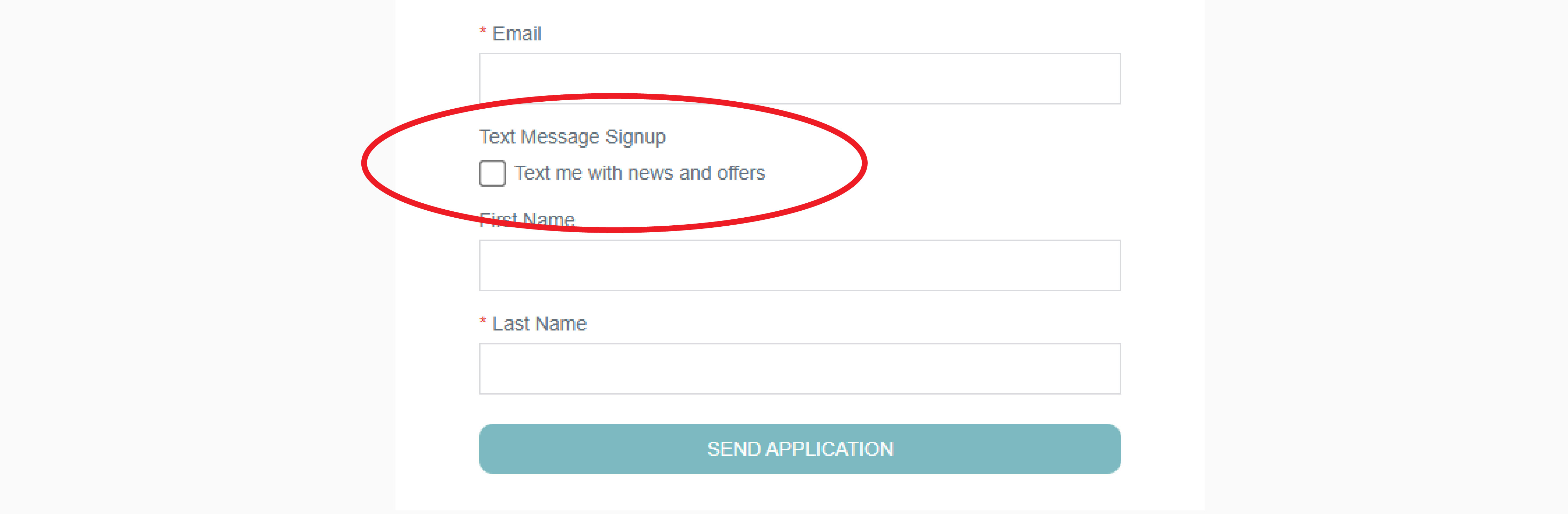
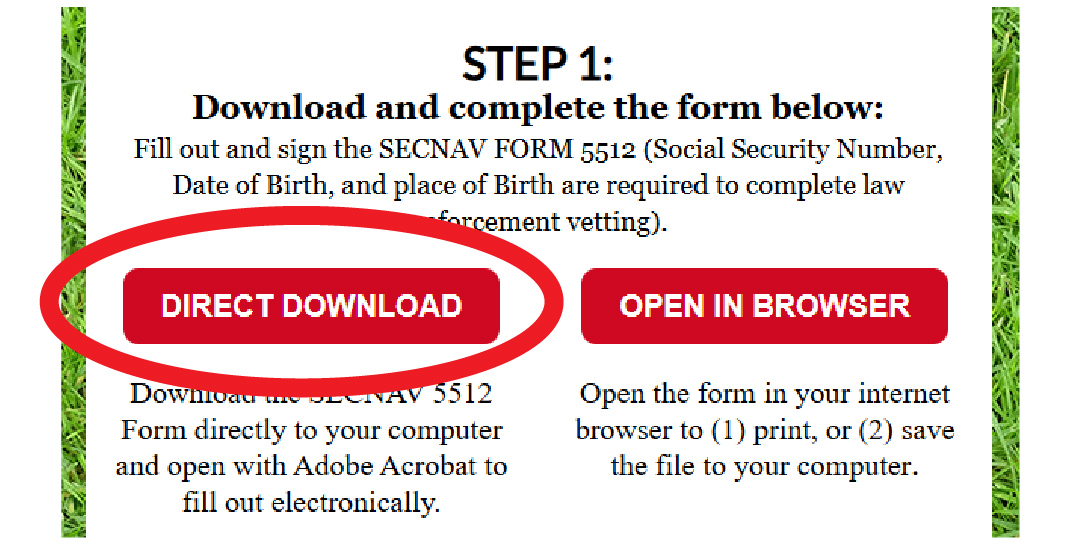
Download the current DBIDS application PDF to your computer.
Select the "Direct Download" button to automatically download the document,
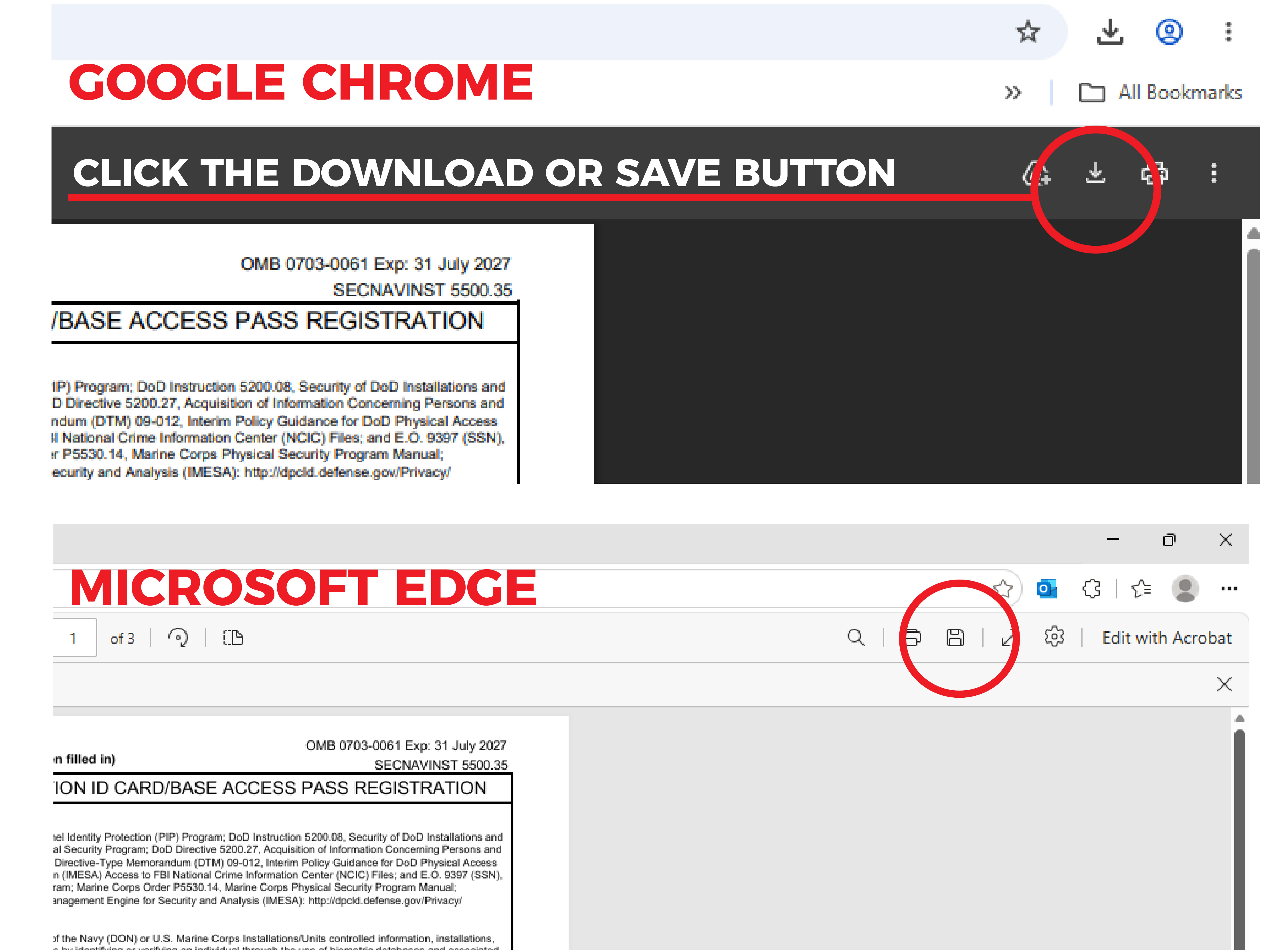
OR select "Open in Browser" button to download from a webpage.
For "DIRECT DOWNLOAD" Button:
For "OPEN IN BROWSER" Button:
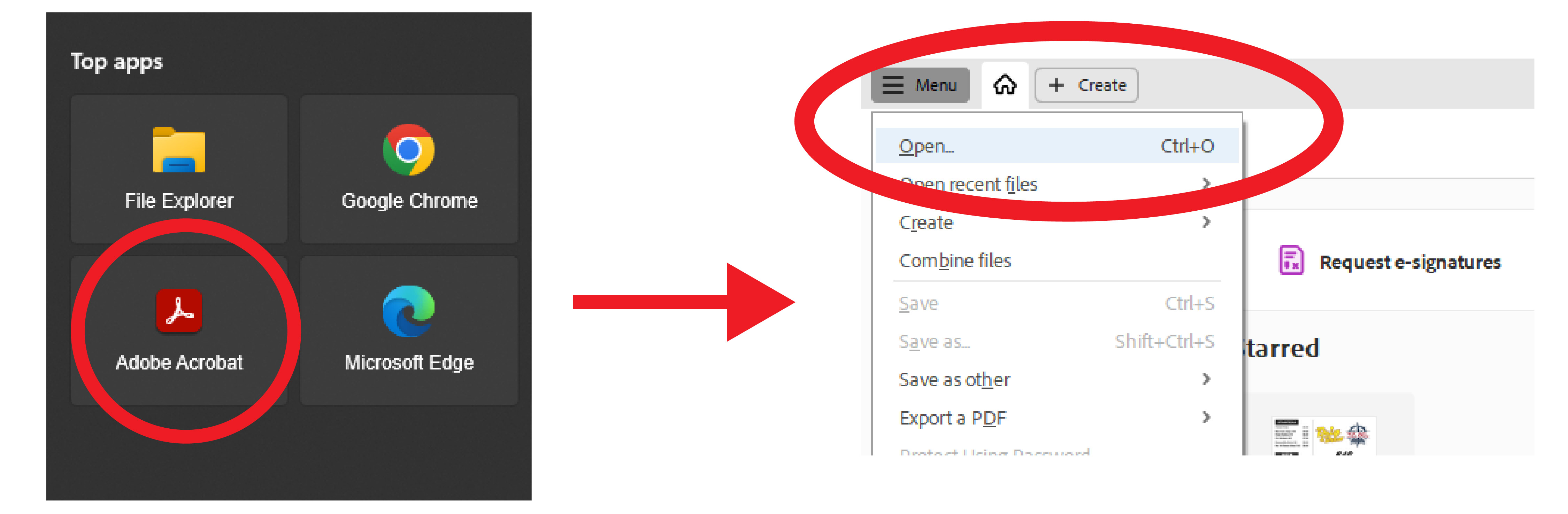
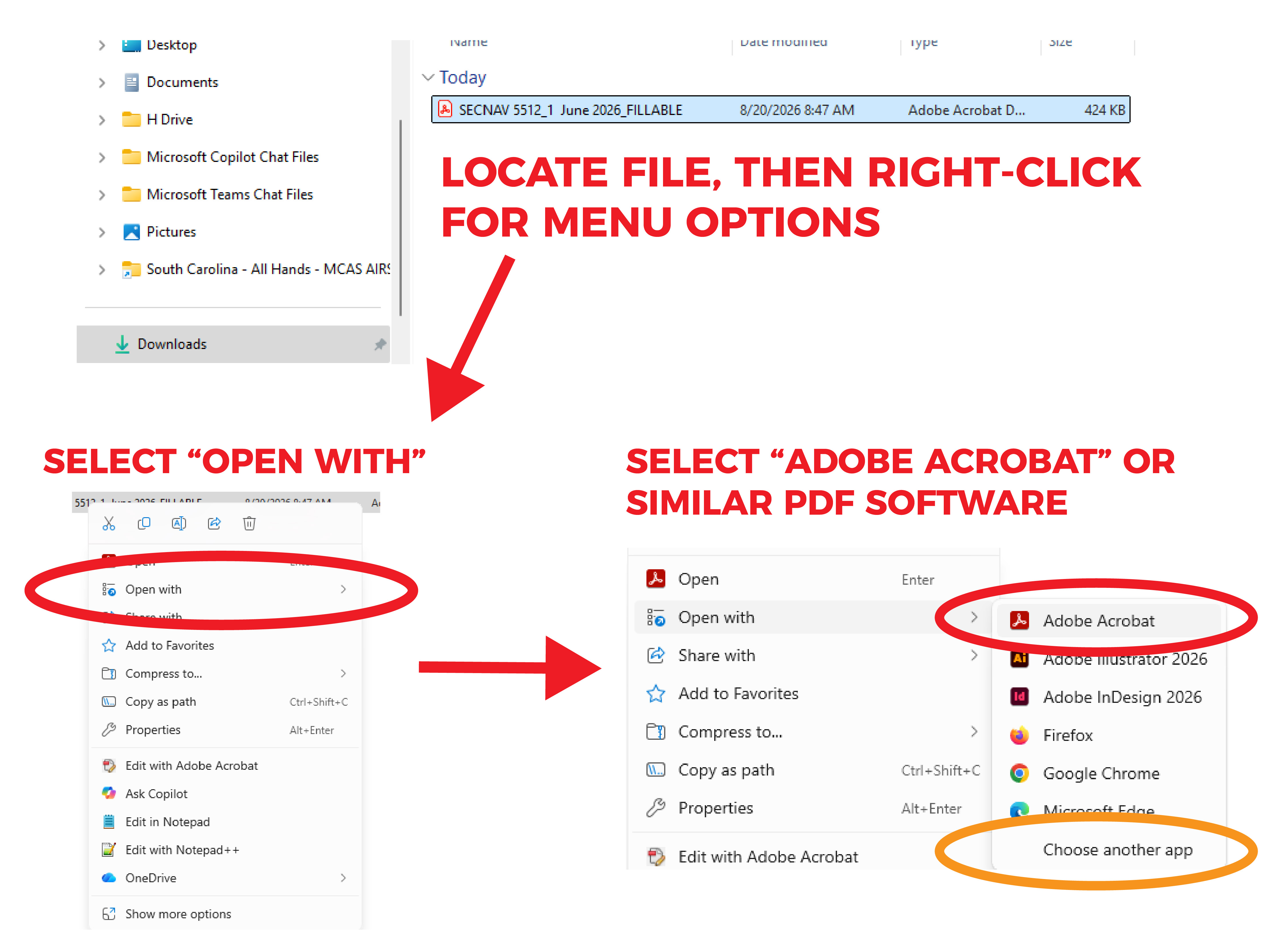
Open the saved application in Adobe Acrobat, Adobe Acrobat Reader, or another PDF program that supports filling forms and adding signatures.
Option 1: Open From Software
Open PDF Software > Click "File" or "Menu" > Click "Open" > Locate and Select the DBIDS application file
Option 2: "Open With" from file
Locate downloaded DBIDS file > Right-click on the file > Select "Open with" > Select Adobe Acrobat or similar PDF software
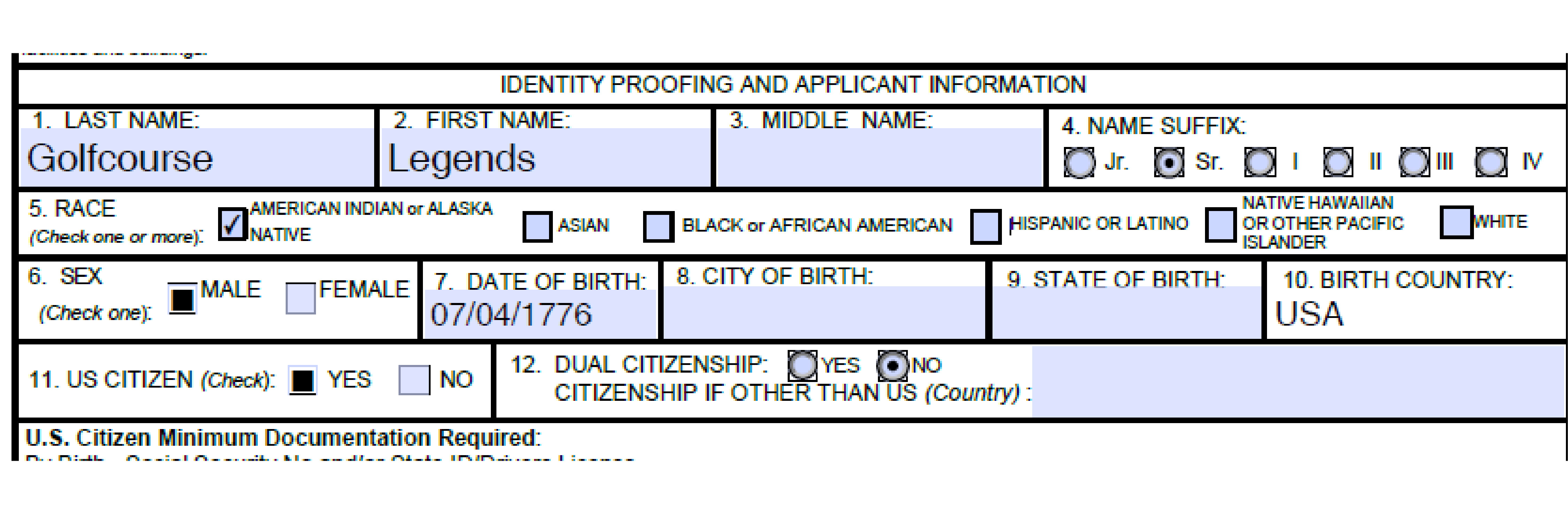
Enter the requested information into each applicable field. Review names, dates, contact information, and any other entries before continuing.
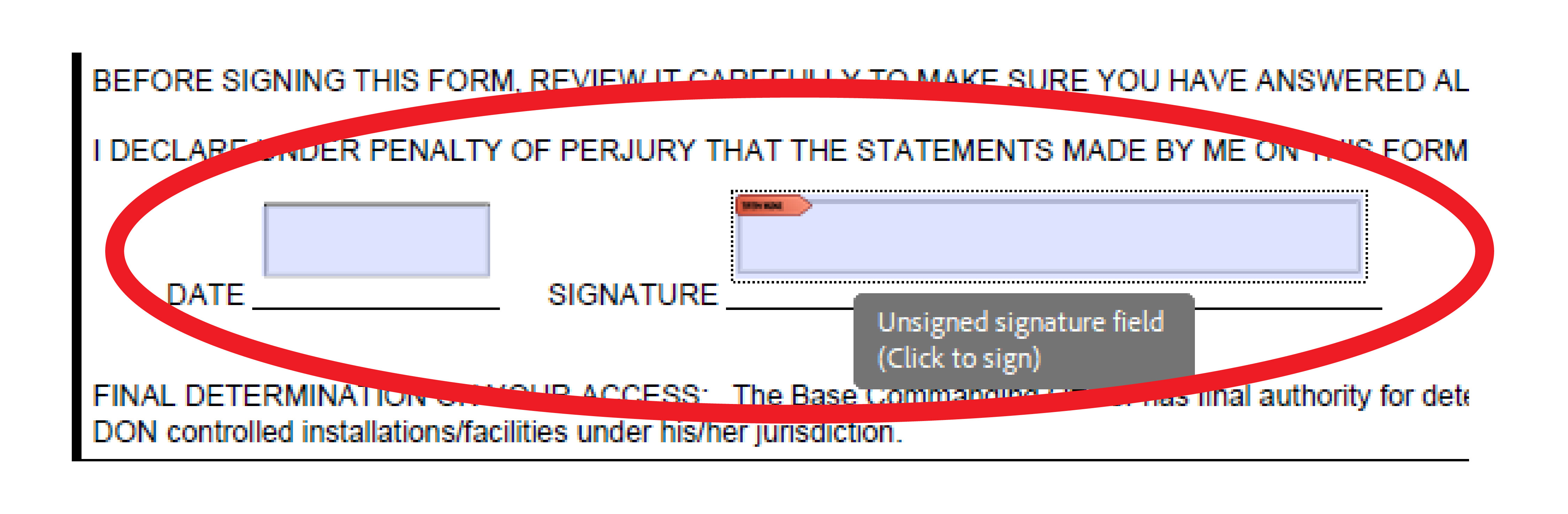
Use the Fill & Sign, Sign, or equivalent tool in your PDF software to add your signature and the date wherever required.
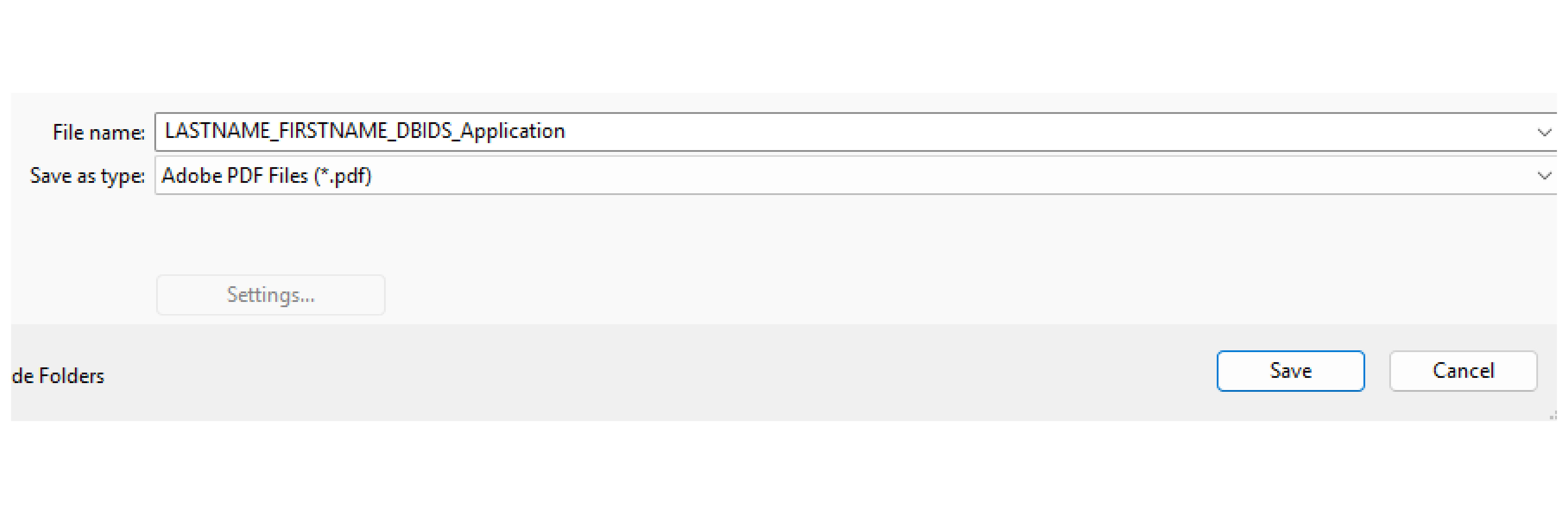
Save the completed and signed PDF using a clear file name. Confirm the changes remain visible after saving and reopening the file.
NOTE: The PDF may automatically save after the final required signature.
If not, click "File" or "Menu" at the top bar > Click "Save As" > Rename to a clear file name
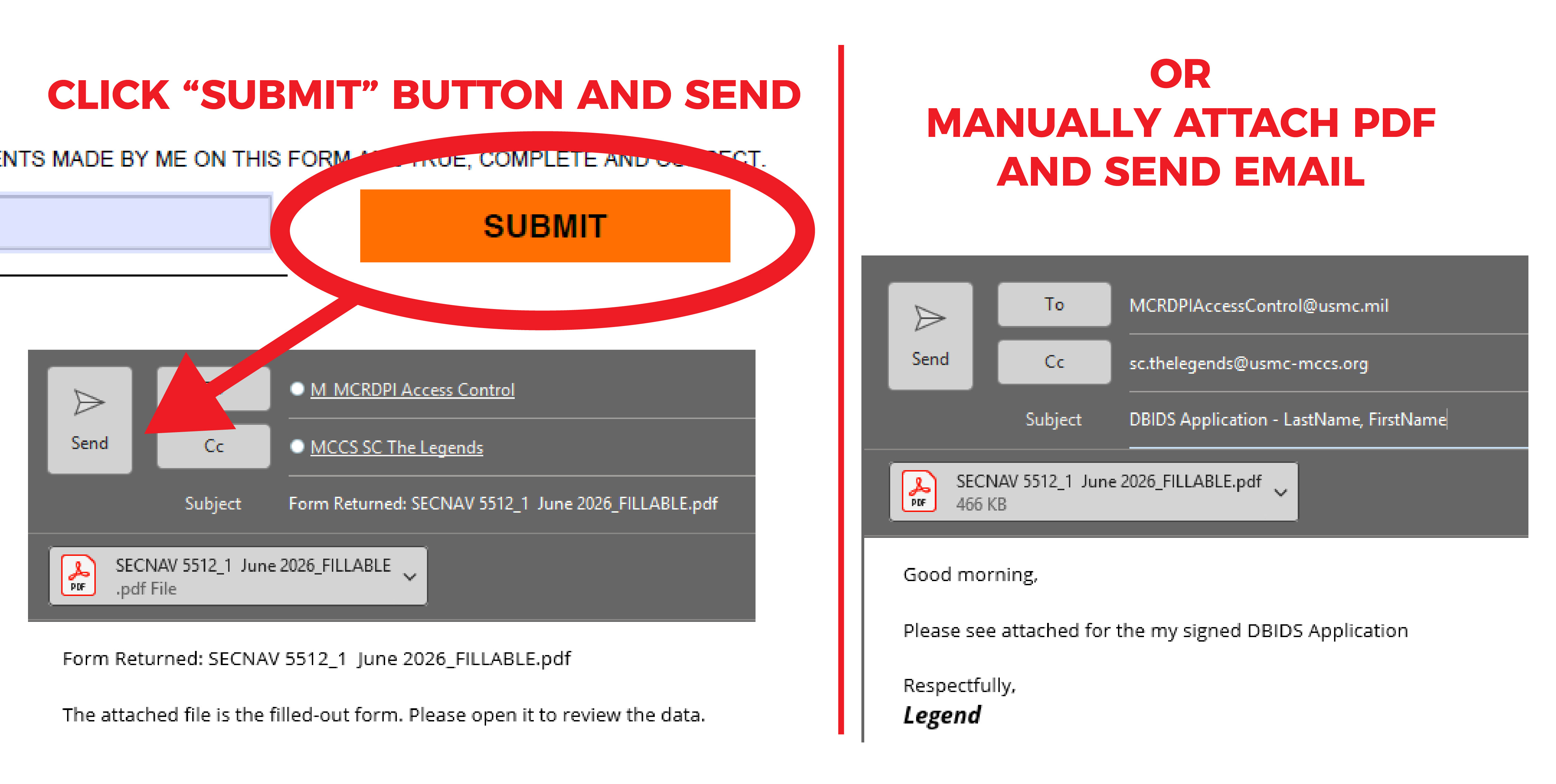
Send an email with the completed PDF to: MCRDPIAccessControl@usmc.mil,
.
Method 2
Use this path when you want to complete and sign a printed copy of the application by hand.
Use this link HERE to sign up and receive your application form.
Open the current DBIDS application PDF on your computer.
Select the "Open in Browser" button to open to a new webpage.
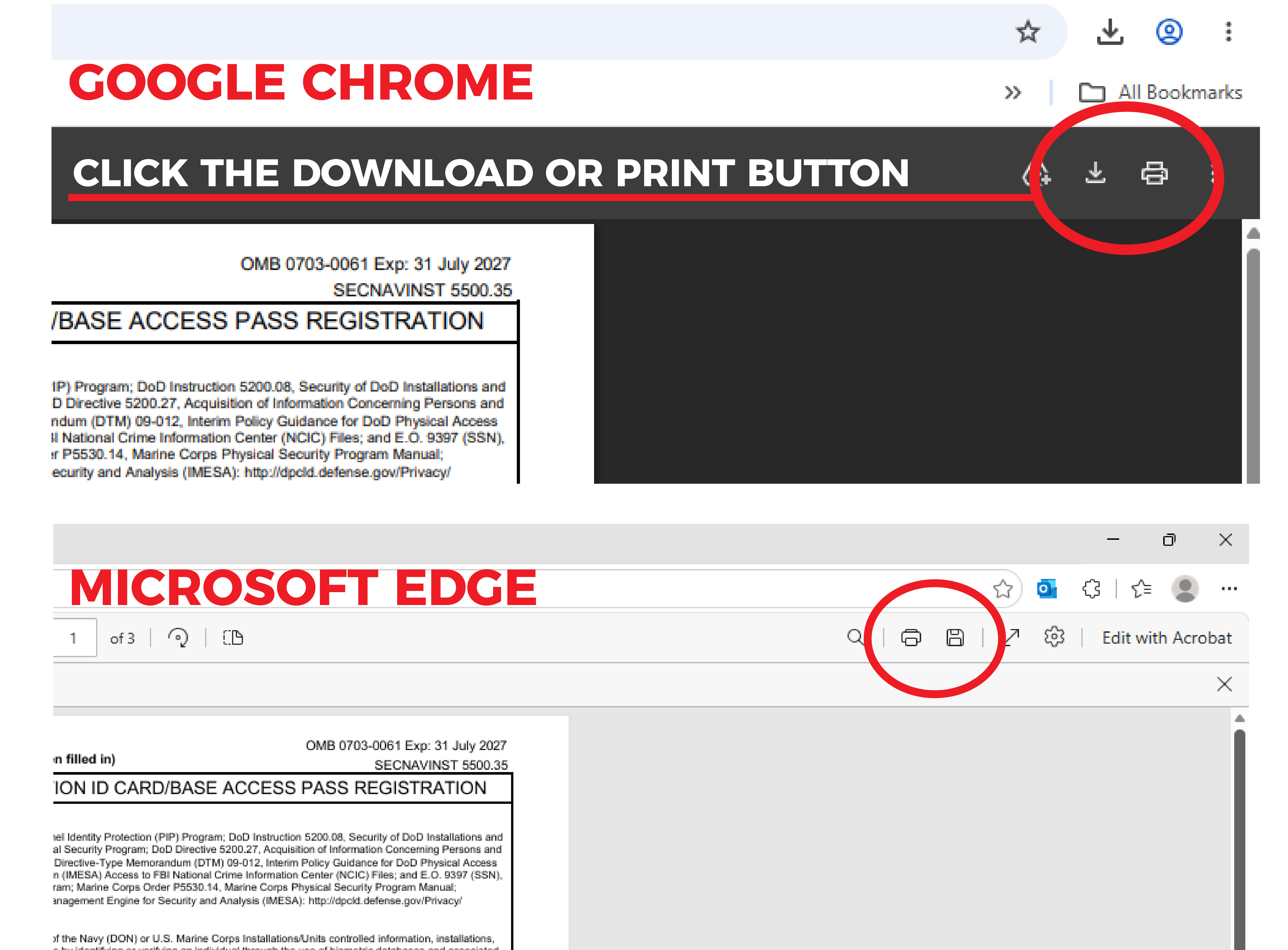
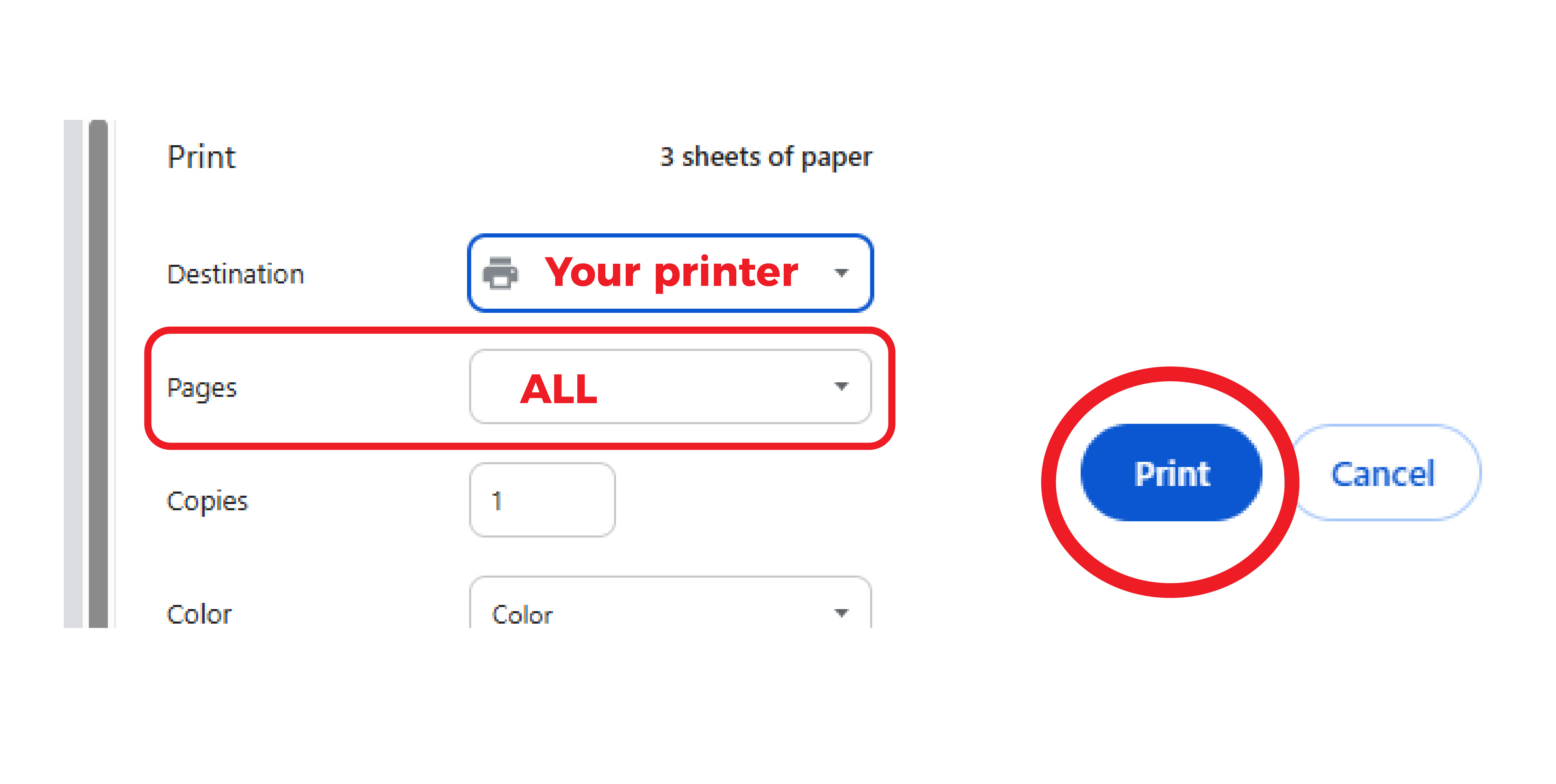
Print all required pages. Use normal page scaling unless your DBIDS instructions specify a different print setting.
Complete all required fields clearly and legibly. Follow your organization’s requirements for ink color, dates, initials, and corrections.
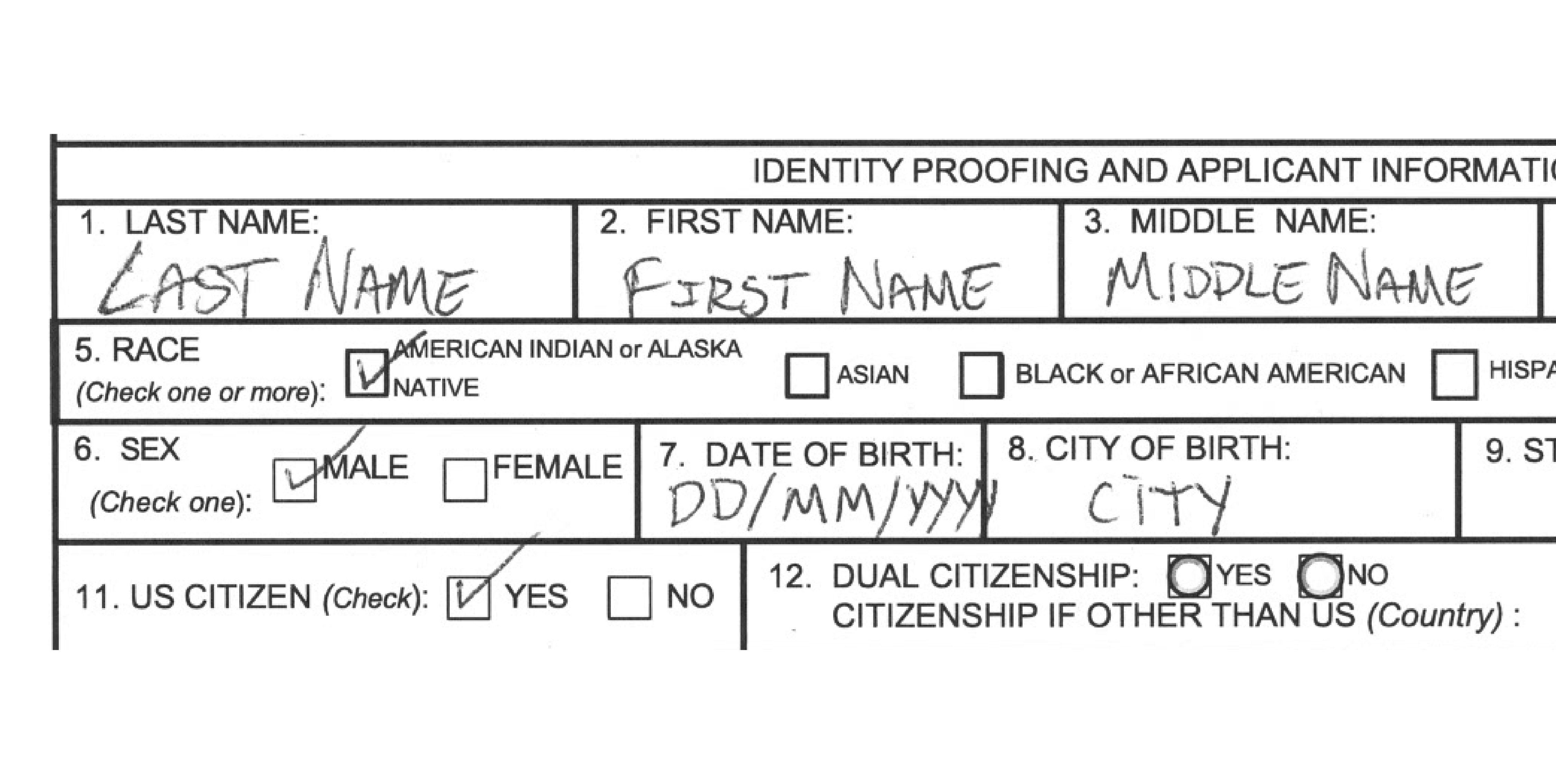
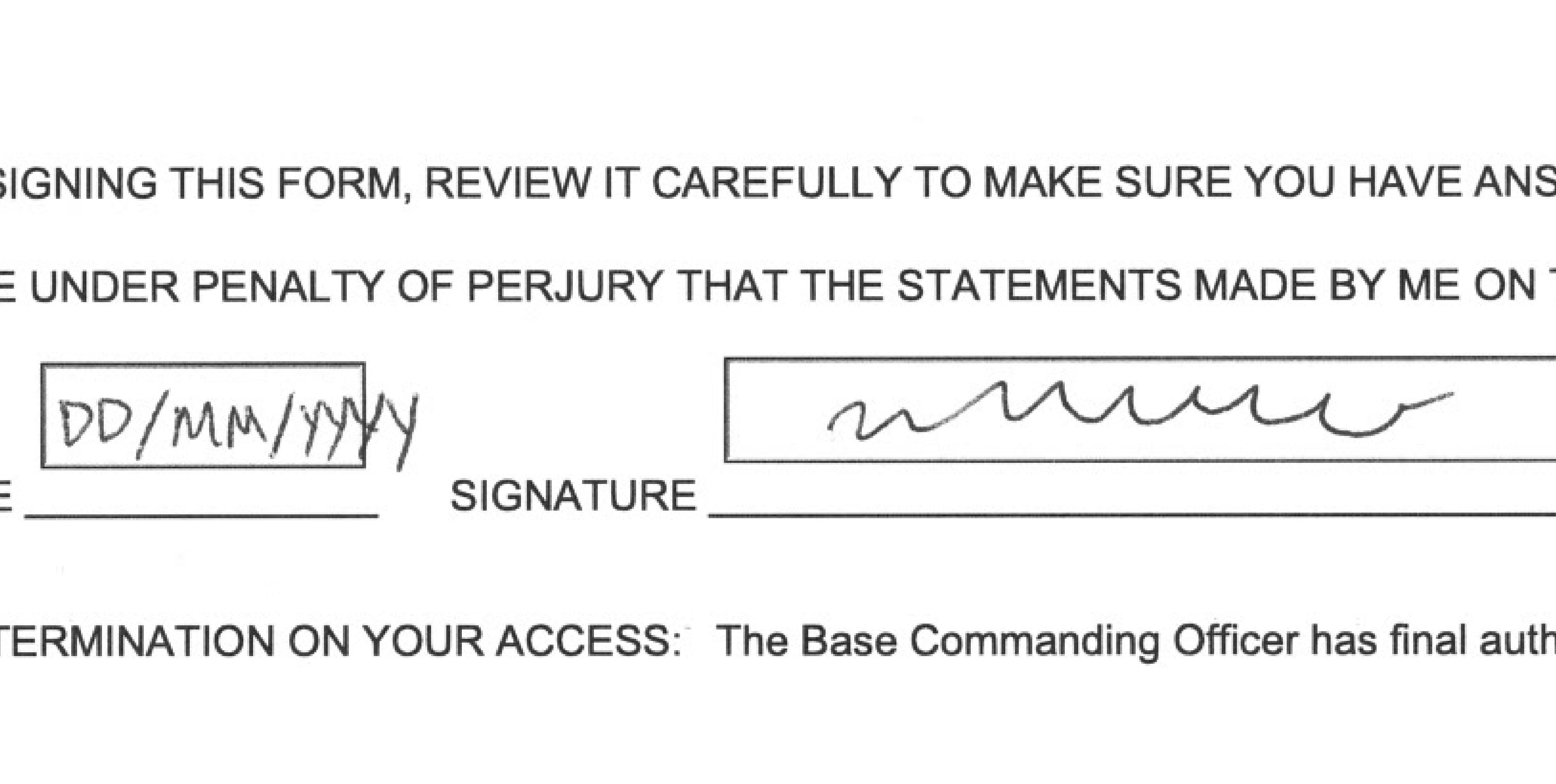
Add your handwritten signature and date anywhere the application requires it. Review the form for any additional initials or acknowledgements.
Scan every completed page into a clear, readable PDF. Make sure pages are upright, fully visible, and in the correct order.
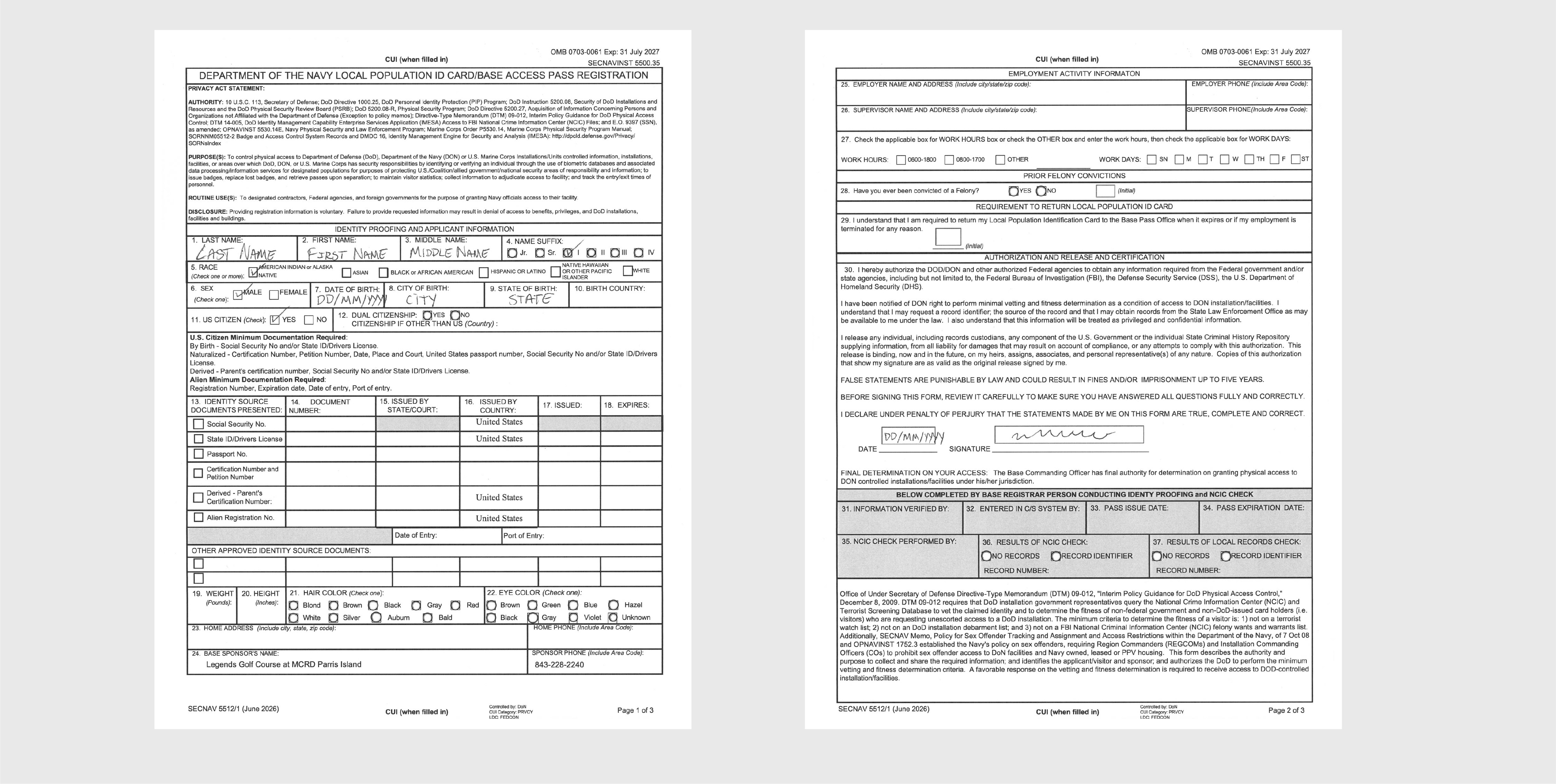
Open the scanned PDF and review every page before submitting it with all required supporting documents.
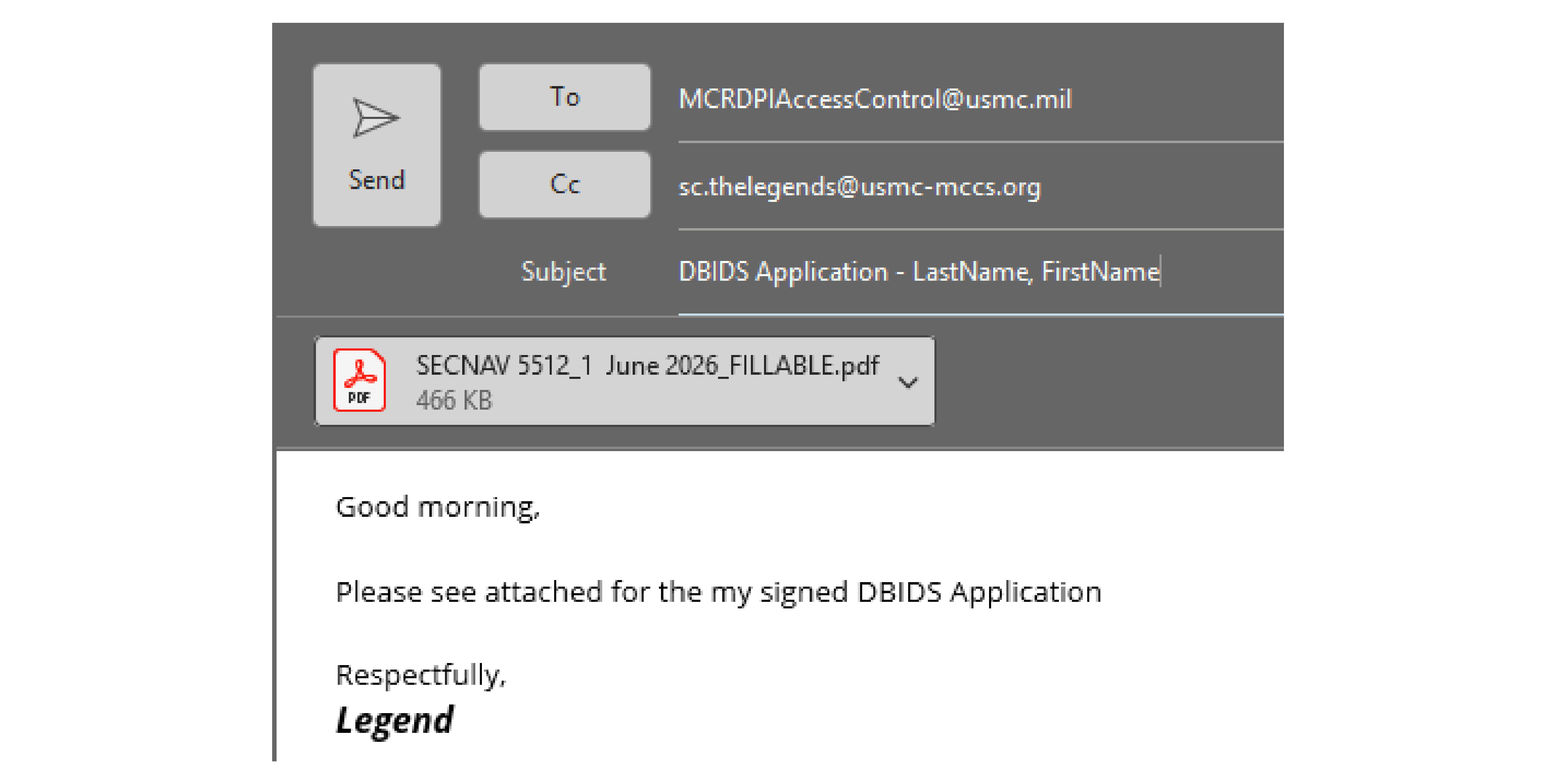
Send an email with the completed PDF to: MCRDPIAccessControl@usmc.mil,
.
Final check